


School District Asset Tagging: A Mid-Year Checklist
School district asset tagging is easiest to keep accurate at mid-year, when devices come back from winter break and pass through staff hands before they go out again. That return is the moment to match every device to the register, replace labels that are damaged or missing, tag the units that arrived from fall purchases, and close out the devices that never came back. Done in January, the work turns the year-end count into a confirmation rather than a search. This checklist covers the process for district IT and technology coordinators and the business office, and the labels to have on hand before break starts.
Why mid-year is the time to check the tags
Three things happen to a district’s device fleet between September and January, and each one moves the register further from what is actually in the buildings.
Devices come back from break. Laptops and tablets that went home over break return in a single wave. Some come back damaged, some with labels scraped or peeled, and some not at all.
Devices get swapped and re-imaged. A unit that failed in October was replaced from spares, and the replacement went to the student before the register caught up. A re-imaged device can also come back under a new name in the management console, which leaves the label as the one identifier that has not changed.
New devices arrive. Purchases made during the fall are often delivered in December and January, sometimes straight to a school, and they are easy to deploy before anyone records them.
The school asset labels range covers the tags and property labels for this work. Which material holds up to students and cleaning is a separate question, answered in the earlier article on school asset tags. This checklist is about the process.
Reconcile the register against carts and classrooms
Start from the register, not from the devices. Export it by school and by location, so each charging cart and each classroom has a list of what should be in it.
Then walk it. Scan or read the label on every device in the cart or room, and record what is actually there, including devices that are not on the list. Each location produces three kinds of exception: devices on the list that are missing, devices present that belong somewhere else, and devices with no readable label at all. The first two are register corrections. The third goes to the retagging pile.
Do the walk while devices are still in carts and on shelves, before they are reissued. Once they are back in backpacks, reconciliation becomes a hunt. The year-end asset inventory article sets out how to resolve each type of exception, and the same three lists work at mid-year.
Retag damaged or missing labels before reissue
A device should not go back to a student with a label that cannot be read. Check every returning unit while it is in hand: the asset tag, the property-of label and, where one is used, the student name label.
Damaged asset tags. Replace them. Where the register allows it, reissue the same number; otherwise assign a new number and record it against the old one, so the device’s history stays linked.
Missing labels. Identify the device from its serial number before anything else happens, match it to the register, and then tag it. Never relabel a device from memory.
Picked-at labels. A destructible label that has been partly peeled is doing its job, because it shows that someone tried. Replace it and note it in the device record, since a pattern of picked labels can point to one cart or one classroom.
Tag new arrivals before they are deployed
Every device bought during the fall should be tagged and recorded before it is imaged, staged or handed out, not after. Tagging after deployment means finding each unit again in a classroom, and some will not be found.
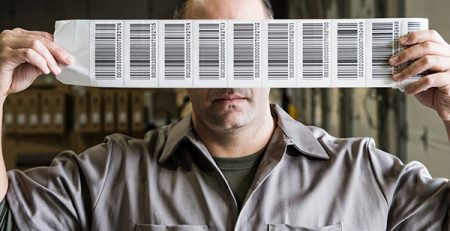
Set up one receiving step for every delivery, even when devices ship to individual schools. Unpack, tag, scan the tag and the serial number into the register, record the funding source and the location, and only then release the device to staging. If the purchase was made with grant funds, the funding source belongs in the register from the first day rather than being reconstructed at audit.
Name labels for student devices
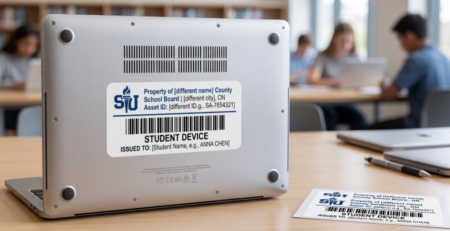
Many districts label each student device with the student’s name as well as the district’s. Student laptop property-of labels are printed one color on white destructible vinyl and laminated, and they cannot be removed in one piece. School boards commonly order name labels in pairs from a spreadsheet of student names: one label goes on the device and one is held on file in case the device is replaced.
At mid-year, the file copy is what saves a reprint. When a student’s device is swapped, the label from the file goes on the replacement and the student’s identification stays the same. Pull the file copies for every swap made since September and check that each replacement device carries one.
Pairs are 4 × 1 in and singles 2½ × 1 in, sold in quantities of 1,000 to 10,000, so students who enroll mid-year are best covered by spare property-of labels ordered with the main run. The student laptop labels article covers the spreadsheet and placement, and the student laptop property-of asset pairs page lists the options.
Loaner devices and charging carts
Loaner pools and charging carts are where devices lose their assignment. A loaner is handed out for a day and comes back a week later; a cart slot holds whichever device was plugged in last.
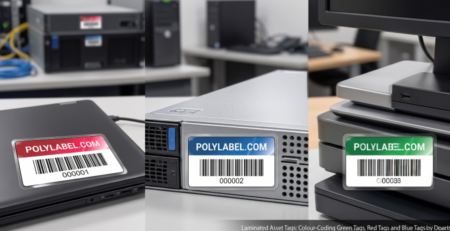
Loaners. Give the loaner pool its own color. Laminated tags come in green, red and blue, so one color kept for loaners marks a loaner on sight. Record every loan with the student, the date out and the date due.
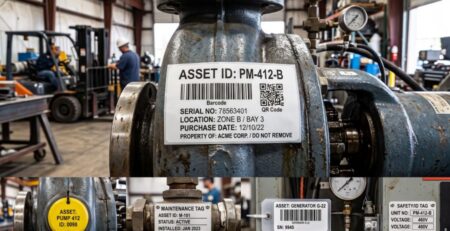
Charging carts. Tag each cart as an asset in its own right, and number its slots. Record which device belongs in which slot, so a gap or a stranger in the cart is obvious during the reconciliation walk.
Record lost and stolen devices
A device that did not come back after break needs a status in the register, not just an absence. Record it as lost or stolen with the date it was last seen, the student or staff member it was assigned to, the location, and any report reference. Keep the record and the tag number, and do not reissue the number to another device. If the device turns up later, the label still identifies it and the record is waiting.
Student property-of labels cannot be removed in one piece, so a label cannot be lifted from a missing device and moved intact to another one. That is the reason to keep the destructible construction on every take-home device.
Add a QR code for check-in or the device record
A QR code on the device gives staff a way to act on it with a phone. PolyLabel’s QR Code Label can carry any data: sequential numbers, unique numbers from a file, or static data such as a link. Two uses fit the mid-year process.
A link to a check-in form. The same link on every device opens the district’s check-in or damage-report form, and the person scanning enters the asset number printed on the tag.
A unique number per device. Numbers supplied from a file match the register, so scanning the code in the district’s asset system brings up the device record.
The QR codes vs barcodes article covers when a QR code earns its place over a plain barcode.
Hologram labels as a visible authenticity mark
Stock hologram labels, at 15 × 30 mm, add a visible authenticity mark beside the asset tag. A staff member checking a cart can see at a glance which devices carry the district’s full set of labels and which have had a label replaced outside the process. The hologram does not replace the asset tag or the property label; it sits alongside them.
Specifying labels for mid-year school district asset tagging
Mid-year school district asset tagging comes down to four jobs: reconcile the register against carts and classrooms, retag before reissue, tag new arrivals at receiving, and record what did not come back. Have the labels on hand before winter break so none of the work waits.
Tell us how many devices you are reconciling, which labels need replacing, whether you need name labels in pairs, QR codes or holograms, and the numbering range to continue, and we will quote the right labels. Request a quote, browse the school asset labels range, or request samples to test the labels on your own devices before break.





Leave a Reply
You must be logged in to post a comment.